Updating the GPS maps on your BMW or Mini F-series or G-series is a simple process done via a USB drive. It allows you to install the latest map version directly on your navigation system (EntryNav, NBT, NBT Evo, Live Cockpit, etc.).
Download the map files
Extract files using WinRAR
Insert the USB drive into your vehicle (glovebox or armrest)
Enter the FSC activation code
Wait until installation reaches 100%
Follow each step carefully to install your new maps easily, quickly, and safely without any risk to your navigation system.
To choose the right map, you first need to identify your iDrive system version: EntryNav, NBT, NBT Evo, etc. Check our guide Identify my navigation version.
From our page BMW & Mini map downloads, select the map that matches your vehicle system and region: Europe, Japan, America, etc.
Make sure you have enough disk space (around 50GB).
If you don’t have the required equipment to download maps (Windows PC with enough storage, etc.), we can send you a ready-to-use USB drive with your maps preloaded (paid service). Contact us.
Once the download is complete, you need to extract the archive. Most maps are provided in .zip format, which can be opened with your system’s default tool. If you receive a .rar file or want better performance, use WinRAR (free version available): Download WinRAR
Insert your USB drive into your computer. The USB drive must be formatted in FAT32 (exFAT may work for newer systems, but FAT32 is strongly recommended). How to check and format your USB drive to FAT32
After extraction, copy all folders and files to the root of the USB drive. (IMPORTANT: the USB drive must contain ONLY the map files and they must be placed at the root level).
In some cases (EVO ID5/6, WAY or LIVE maps), you must create a folder named FSC at the root of the USB drive and place the FSC file inside. This will be specified in the email instructions sent with your FSC code.
Once your USB drive is ready, turn on your vehicle ignition and plug the USB into your BMW or Mini. It is usually located in the glovebox or center armrest. The system will automatically detect it and prompt you to start the update.
For security reasons, an FSC code is required to start the update. Use the iDrive controller to enter your code. For NBT EVO ID5/6, WAY or LIVE systems (with FSC folder on USB), the code may not be required.
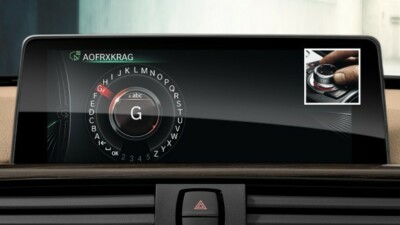
That’s it! The update is now running.
Do not turn off the ignition during installation. Keep the engine running if possible to avoid battery drain. You can continue driving while the update is in progress. Installation typically takes 30 minutes to 1 hour depending on your system.
Once the update reaches 100%, you can remove the USB drive and enjoy your updated GPS maps!